

As we move further into 2026, streaming technology continues evolving, but one constant remains: IPTV Smarters Pro is still one of the most versatile, user-friendly IPTV players available for Amazon Firestick. With its clean interface, multi-screen support, and compatibility with most IPTV services, it’s the go-to choice for millions of cord-cutters worldwide.
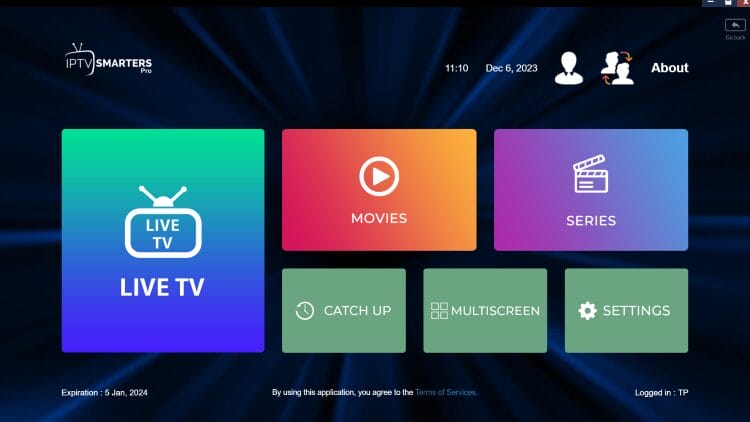
This comprehensive guide will walk you through every step of installing IPTV Smarters Pro on your Firestick, optimized with 2026’s latest methods and best practices. Whether you’re a streaming novice or a seasoned tech enthusiast, you’ll find value in this detailed tutorial.
Prerequisites: What You’ll Need Before Starting
- Amazon Firestick (2nd Generation or newer) – 4K Max recommended for optimal performance
- Stable internet connection (Minimum 15 Mbps for HD, 25+ Mbps for 4K)
- IPTV subscription from a legitimate provider (more on this later)
- Amazon account linked to your Firestick
- Downloader app – the essential tool for sideloading
Legal Disclaimer: Important Considerations for 2026
⚠️ CRITICAL READ BEFORE PROCEEDING:
- IPTV Smarters Pro is only a player application – it requires a separate IPTV subscription
- Using IPTV services to access copyrighted content without proper licensing is illegal in most countries
- Always verify your IPTV provider has legitimate licensing agreements with content creators
- This guide is for educational purposes only – users are responsible for complying with local laws
Step 1: Prepare Your Firestick for Sideloading
- From your Firestick home screen, navigate to Settings
- Select My Fire TV → Developer Options
- Enable Apps from Unknown Sources
- Also enable ADB Debugging (helpful for troubleshooting)
Pro Tip for 2026: Amazon occasionally moves these options. If you can’t find them, use the search function in Settings and type “Developer Options.”
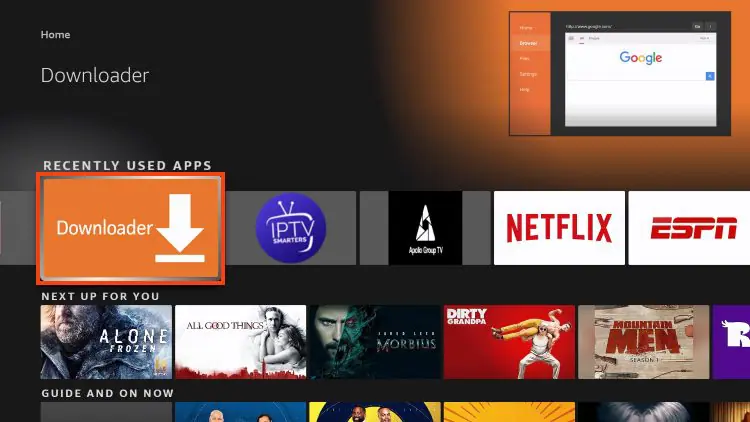
Step 2: Install Downloader App
- Return to the home screen and use the search function
- Search for “Downloader” (by AFTVnews)
- Download and install the app
- Open Downloader and grant necessary permissions when prompted
Step 3: Download IPTV Smarters Pro
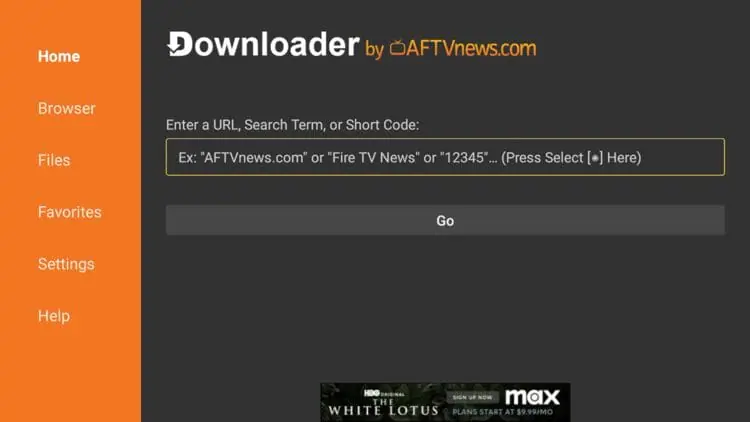
- In Downloader, enter this Code (verified for 2026): 6468112
- Direct Download Link
- Click “Go” and wait for the download to complete
- The APK file will automatically begin installing
Step 4: Install the Application
- When prompted, click “Install”
- Wait for the installation to complete (typically 30-60 seconds)
- Select “Open” to launch the app immediately, or “Done” to open later
Step 5: Initial Setup and Configuration
- First Launch: Grant all necessary permissions (storage, network access)
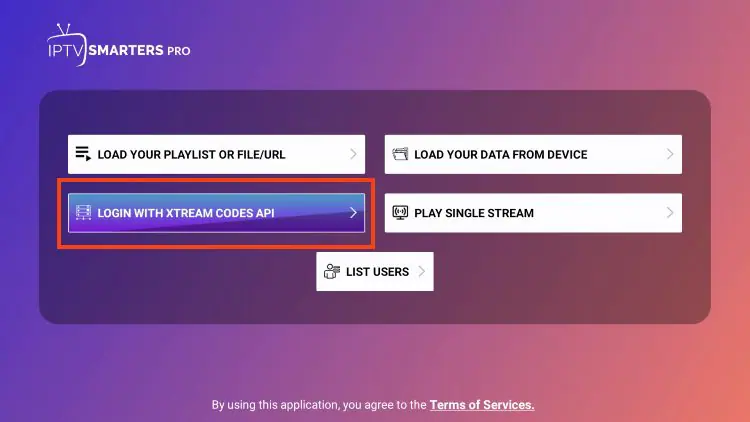
- Login Method: Select how you’ll connect:
- Login with Xtream Codes API (most common)
- Login with Playlist URL (M3U link)
- Login with File (local M3U file)
- Enter Your Credentials: Provided by your IPTV service
- Username/Password
- Portal URL
- Optional: MAC address if required
- Customize Settings:
- Set default player (recommend EXO Player for 2026)
- Enable catch-up if your provider supports it
- Adjust EPG offset if guides aren’t syncing properly
Advanced 2026 Optimizations:
- Clear Cache Regularly:
- Settings → Applications → Manage Installed Applications → IPTV Smarters → Clear Cache
- Network Optimization:
- Use 5GHz WiFi when possible
- Consider Ethernet adapter for Firestick
- Set up QoS on your router prioritizing Firestick traffic
- Storage Management:
- Move app to external storage if using Firestick with USB port
- Regularly delete watched recordings
